
Trips
Overview
Trips let you group related travel expenses together. Instead of one long list of every receipt, you create separate trips for different journeys: a weekend getaway, a business conference, a backpacking adventure through Southeast Asia.
Each trip tracks its own expenses, has its own currency, and generates its own reports. You can also share trips with travel companions, but that is covered in the Sharing Trips article.
How to Use It
Creating a Trip
- Open the Trips page from the Home screen and tap the + button.
- Enter a trip name and optional notes.
- Set your destination — where you're heading.
- Choose start and end dates for your trip.
- Set a budget to track how much you plan to spend.
- Add a cover image to personalize the trip.
- Set the trip currency. This is fixed at creation and applies to every receipt in the trip.
- Tap Create.
Adding Expenses to a Trip
When you add a receipt (scan, voice, manual entry), select the target trip before saving. The expense is then tied to that trip and counted toward its totals and budget.
Viewing a Trip
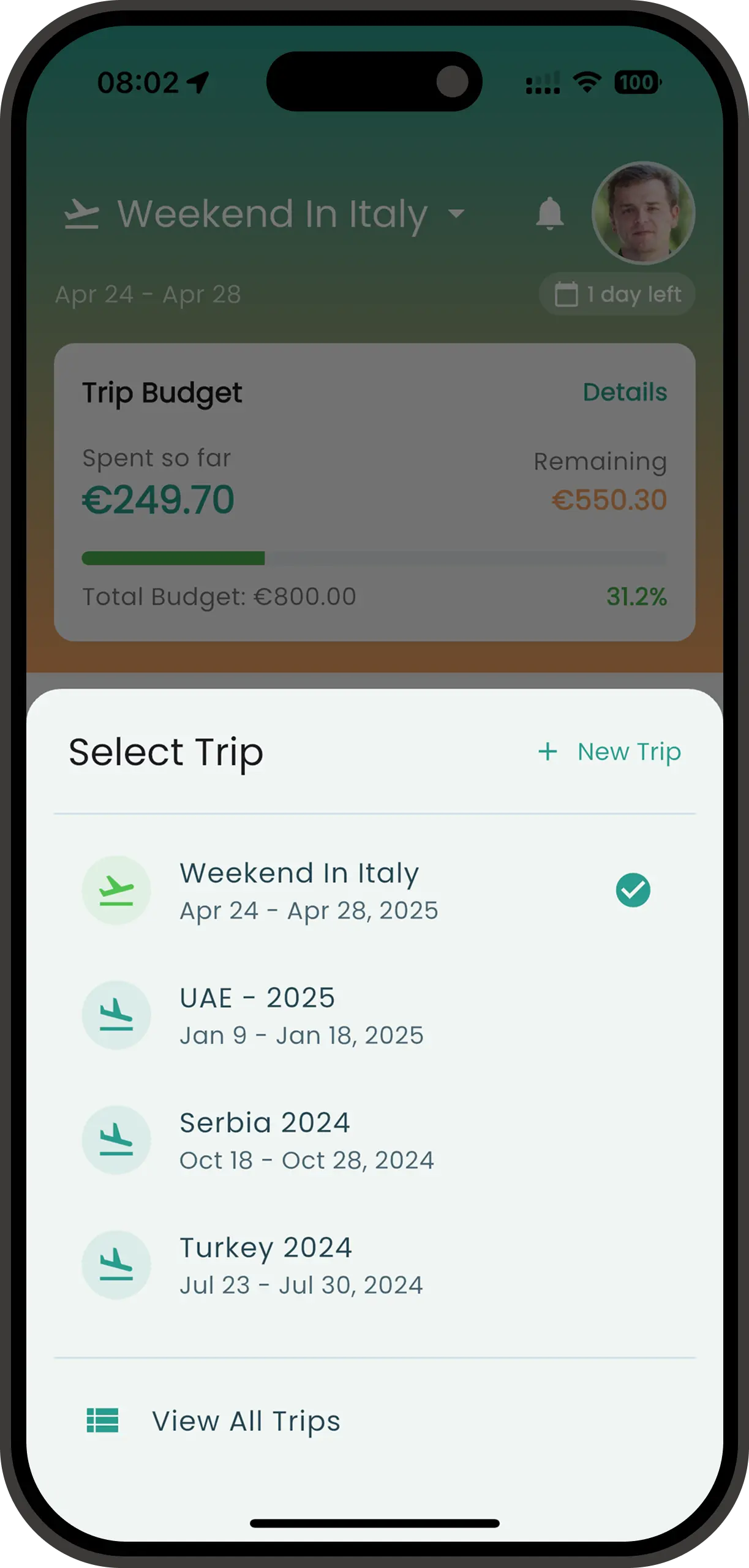
Tap any trip to see its overview. You will see the trip name, destination, dates, member count, total spending vs budget, and a list of recent expenses. From here you can also access the trip's reports and settings.
Editing a Trip
Open the trip and tap the settings icon. You can change the name, notes, destination, dates, budget, and cover image. The currency cannot be changed after creation.
Archiving a Trip
Only the trip owner can archive a trip. Archiving hides it from the active trip list but does not delete anything. You can still access archived trips and their data from the archived section at the bottom of the trip list.
Tips
One Trip at a Time
You can have multiple trips, but only one is active at a time. New expenses are added to your currently selected trip. Switch trips from the Home tab whenever you need to.
Currency Is Locked
The currency you choose at trip creation applies to all receipts in that trip. Pick carefully. If you need a different currency, create a new trip.
Set a Budget
Setting a budget helps you track spending against your plan. The trip overview shows how much you've spent vs your budget so you can stay on track.
Archive Instead of Delete
Finished a trip? Archive it. The data stays intact for future reference, but it stops cluttering your active list.